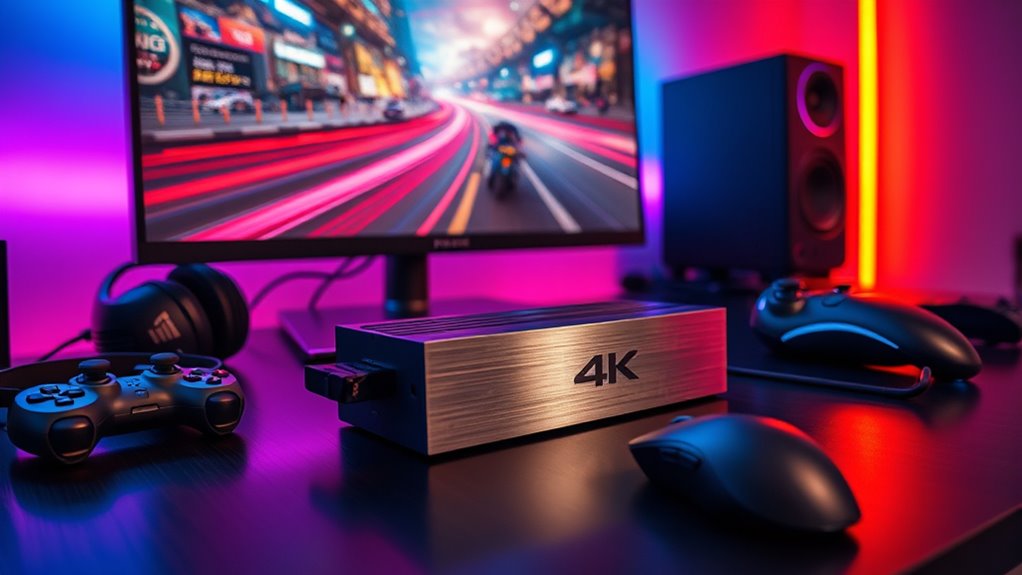

4K60 streaming capture cards vary in whether they capture 4K at 60 frames per second or pass that signal through while recording at a lower resolution. My best overall pick is the Elgato 4K Pro for a high-end PC streaming setup, while the Elgato 4K S is a flexible external option and the AVerMedia GC311G2 suits streamers who want 4K60 HDR passthrough with 1080p60 capture. The main tradeoffs are internal versus portable installation, true capture resolution, passthrough features, and host-device compatibility. A compact USB card may be easier to set up, while a PCIe model can better suit a permanent desktop rig. Read on for the full breakdown and help matching a card to your console, camera, and streaming workflow.

Get business pricing on tools and workshop supplies
- Business-only prices and quantity discounts
- Tax-exempt purchasing
- Multiple users, one account, clear invoices
Complete the kit

Key Takeaways
- Capture resolution and passthrough are different jobs: The GC311G2 is explicitly listed for 1080p60 capture with 4K60 HDR passthrough, so it should not be confused with a card that records 4K60.
- Internal cards favor a fixed desktop setup: The AVerMedia GC573, GC571, and Elgato 4K Pro use PCIe, while the USB-connected picks are more practical for laptops and portable rigs.
- The lineup includes distinct console and camera paths: The Elgato 4K S is positioned for current consoles, while Cam Link 4K is tailored to HDMI camera input.
- Passthrough is not a guarantee of every desired feature: Buyers still need to check HDR, refresh-rate support, and whether capture matches passthrough before choosing.
- Entry-level USB options trade certainty for simplicity: Several compact cards advertise 4K or 4K60 features, but buyers should confirm their exact capture mode, software support, and host connection requirements.
| BlueAVS 4K HDMI Video Capture Card with USB-C |  | Best for High-Refresh Capture | Capture resolutions: 4K@60Hz, 1440p@144Hz, 1080p@240Hz | HDMI passthrough: Up to 4K@60Hz | Passthrough features: HDR, VRR, ALLM | VIEW ON AMAZON | See Our Full Breakdown |
| Guermok HDMI Capture Card, USB 3.0 to USB-C, 4K 60Hz |  | Best for Broad Device Compatibility | Maximum capture resolution: Up to 4K; 60Hz input and output in MJPEG format | Supported formats: MJPEG, YUY2, NV12, XRGB | Interfaces: HDMI, USB 3.0 Type-A, USB 3.0 Type-C | VIEW ON AMAZON | See Our Full Breakdown |
| AVerMedia Live Gamer 4K GC573 Internal Capture Card |  | Best for Windows Desktop Setups | Hardware interface: PCI Express x4 | Capture resolution: 4K60 HDR10 | Maximum capture frame rate: Up to 240 fps | VIEW ON AMAZON | See Our Full Breakdown |
| Elgato Game Capture Neo Portable USB Capture Card, Black |  | Best for Beginners and Portable 1080p Streaming | Connection: USB | Passthrough: 4K60 HDR | Capture resolution: 1080p60 | VIEW ON AMAZON | See Our Full Breakdown |
| XIIXMASK USB 3.0 HDMI Capture Card with 4K Pass-Through |  | Best for 4K Passthrough on a Full HD Stream | Hardware interface: USB 3.0 | Capture resolution: 1080p at 60 fps; 1440p at 30 fps | HDMI input and passthrough: Up to 4K at 60Hz | VIEW ON AMAZON | See Our Full Breakdown |
| Elgato Cam Link 4K HDMI Capture Card |  | Best for Camera-Based Streaming | Hardware interface: USB 3.0 | Capture resolution: Up to 1080p60 or 4K60 with compatible equipment | Compatibility: PC, Mac, and iPad with USB-C | VIEW ON AMAZON | See Our Full Breakdown |
| NearStream CCD30 4K60 HDMI Capture Card |  | Best for High-Refresh Passthrough | Hardware interface: HDMI and USB-C 3.1 | Maximum capture resolution: 4K60 | HDMI passthrough: Up to 4K60, 1440p120, or 1080p240 | VIEW ON AMAZON | See Our Full Breakdown |
| AVerMedia Live Streamer Ultra HD GC571 PCIe Capture Card |  | Best Internal Card for VRR and 1080p120 | Interface: PCIe x4 | Video capture resolution: Up to 1440p60 or 2160p30 | Pass-through: 4K60 | VIEW ON AMAZON | See Our Full Breakdown |
| ezcap333P 4K HDMI Capture Card with USB 3.0 |  | Best Feature-Rich USB Pick | Video capture resolution: 2160p60, 1440p60, or 1080p120 | HDMI passthrough: 4K60 | Hardware interfaces: 3.5 mm audio, HDMI, and USB 3.0 Type-C | VIEW ON AMAZON | See Our Full Breakdown |
| HDMI to USB 3.0 Video Capture Card with 4K Pass-Through |  | Best for 1080p Streaming on a 4K Display | Capture resolution: Up to 1080p | HDMI input: Up to 4K at 60 Hz; does not support 4K at 120 Hz or 144 Hz | Output: Up to 2K at 30 Hz | VIEW ON AMAZON | See Our Full Breakdown |
| Elgato 4K Pro Internal Capture Card |  | Best for High-End PC Setups | Capture resolution: Up to 4K60 HDR10 | Passthrough resolution: Up to 8K60 | Maximum recording frame rate: 1080p240 | VIEW ON AMAZON | See Our Full Breakdown |
| Elgato 4K S Capture Card for PS5, Xbox Series X/S, and Switch 2 |  | Best for Cross-Platform Creators | Capture resolution: Up to 4K60 | Passthrough resolutions: 1440p120 or 1080p240 | HDR capture: HDR10 on Windows | VIEW ON AMAZON | See Our Full Breakdown |
| AVerMedia GC311G2 USB-C Game Capture Card, 1080p60 Capture with 4K60 HDR Pass-Through |  | Best for 1080p Streaming with 4K Passthrough | Capture resolution: Up to 1080p60 SDR | Passthrough resolution: Up to 4K60 HDR | High-refresh passthrough: Up to 1440p144 HDR or 1080p240 HDR | VIEW ON AMAZON | See Our Full Breakdown |
| GENKI ShadowCast 3 Pro 4K60 Capture Card with HDMI Passthrough |  | Best for Portable, App-Flexible Setups | Capture resolution: Up to 4K60 | Supported frame rates: 1440p120 and 1080p240 | Connectivity: HDMI input, HDMI passthrough, and USB-C capture | VIEW ON AMAZON | See Our Full Breakdown |
| 4k60 streaming capture card | Capture resolution | Dimensions |
|---|---|---|
| BlueAVS 4K HDMI Video Capture | — | 4.33 x 2.36 x 0.9 inches |
| Guermok HDMI Capture Card | — | — |
| AVerMedia Live Gamer 4K GC573 | 4K60 HDR10 | 5.9 x 4.9 x 0.8 inches |
| Elgato Game Capture Neo Portab | 1080p60 | — |
| XIIXMASK USB 3.0 HDMI Capture | 1080p at 60 fps; 1440p at 30 fps | — |
| Elgato Cam Link 4K HDMI Captur | Up to 1080p60 or 4K60 with compatible equipment | 3.19 x 1.22 x 0.47 inches |
| NearStream CCD30 4K60 HDMI Cap | — | 4.5 x 2.2 x 0.8 inches |
| AVerMedia Live Streamer Ultra | — | — |
| ezcap333P 4K HDMI Capture Card | — | 4.33 x 2.48 x 0.87 inches |
| HDMI to USB 3.0 Video Capture | Up to 1080p | 3 x 2 x 1 inches |
| Elgato 4K Pro Internal Capture | Up to 4K60 HDR10 | 2.2 x 4.76 x 0.75 inches |
| Elgato 4K S Capture Card for P | Up to 4K60 | — |
| AVerMedia GC311G2 USB-C Game C | Up to 1080p60 SDR | — |
| GENKI ShadowCast 3 Pro 4K60 Ca | Up to 4K60 | — |
More Details on Our Top Picks
BlueAVS 4K HDMI Video Capture Card with USB-C
The BlueAVS is the strongest fit here for streamers who want more than 4K60 passthrough: it can capture 4K at 60Hz, or switch to 1440p at 144Hz and 1080p at 240Hz for faster gameplay. That makes it more flexible for high-refresh PC play than the Elgato Game Capture Neo, which captures at 1080p60. HDR, VRR, and ALLM passthrough help preserve compatible display features while you play, and its driver-free UVC/UAC setup works across Windows, macOS, and Linux. The 3.5 mm audio connection is useful for routing line-in or headset audio, but it adds setup choices the simpler Neo avoids. I would skip it if your computer lacks a USB 5 Gbps port, and the provided product details do not establish real-world performance.
Pros:- Captures up to 4K60, with 1440p144 and 1080p240 modes for high-refresh play
- 4K60 passthrough supports HDR, VRR, and ALLM
- Driver-free UVC/UAC compatibility covers Windows, macOS, and Linux
- Dedicated 3.5 mm port supports line-in and headset audio
Cons:- Requires a USB 5 Gbps port
- Its broader audio and capture options may take more setup than the Elgato Game Capture Neo
- Product information does not provide real-world performance evidence
Best for: PC and console streamers who want high-refresh capture options, broad operating-system support, and a dedicated audio connection.
Not ideal for: People with only USB 2.0 or slower ports, or buyers who need independently verified performance before choosing a capture device.
- Capture resolutions:4K@60Hz, 1440p@144Hz, 1080p@240Hz
- HDMI passthrough:Up to 4K@60Hz
- Passthrough features:HDR, VRR, ALLM
- Interfaces:HDMI, USB 3.2 Gen 1, 3.5 mm audio, headphone
- Minimum system connection:USB 5 Gbps port
- Compatible operating systems:Windows 10/11, macOS, Linux
- Dimensions:4.33 x 2.36 x 0.9 inches
- Weight:126 g
Our verdict“Choose the BlueAVS if high-refresh capture and 4K60 feature-rich passthrough matter more than the Neo’s simpler 1080p60 setup.”
Guermok HDMI Capture Card, USB 3.0 to USB-C, 4K 60Hz
The Guermok’s appeal is its reach: it accepts HDMI and connects over USB-A or USB-C, with listed compatibility spanning computers, Android devices, and newer iPads. It supports up to 4K60 input and output in MJPEG, though that ceiling depends on format; YUY2, NV12, and XRGB are also listed, with resolution and frame rate varying by format. Unlike the XIIXMASK, the product details do not list 4K HDMI passthrough for direct display use, so I would treat it as a computer-connected capture device rather than a play-through hub. It needs capture software, but requires no external power or drivers. The included adapter helps with USB-A connections; USB 2.0 falls back to 1080p, making a USB 3.0 port a practical requirement for its higher-resolution use.
Pros:- Supports up to 4K60 input and output in MJPEG format
- USB-A and USB-C connection options, including an included adapter
- Works with listed Windows, macOS, Linux, Android, and iPadOS devices
- Needs no external power or driver installation
Cons:- Capture software is required, and it cannot directly cast to a monitor or TV
- USB 2.0 limits output to 1080p
- Resolution and frame rate vary across MJPEG, YUY2, NV12, and XRGB
Best for: Streamers and tablet users who need a compact HDMI-to-USB capture option that can connect to either USB-A or USB-C devices.
Not ideal for: Console players who want HDMI passthrough to a monitor or TV, or buyers who expect every listed video format to support 4K60.
- Maximum capture resolution:Up to 4K; 60Hz input and output in MJPEG format
- Supported formats:MJPEG, YUY2, NV12, XRGB
- Interfaces:HDMI, USB 3.0 Type-A, USB 3.0 Type-C
- Compatibility:Windows 7/8/10/11, macOS, Linux, Android 5.0+, iPadOS 17+
- Power and drivers:No external power or drivers required
- Included adapter:USB-A male to USB-C female
- Minimum system requirements:4 GB RAM and USB 3.0; Windows 10/11 64-bit or macOS 10.15 or later
Our verdict“Pick the Guermok for flexible USB-A/USB-C device connections, but choose the XIIXMASK instead if 4K60 HDMI passthrough is part of your setup.”
AVerMedia Live Gamer 4K GC573 Internal Capture Card
The GC573 is the performance-led choice for a Windows desktop with an open PCIe x4 slot. Its headline is 4K60 HDR10 capture, paired with zero-lag passthrough and capture rates up to 240 fps. That makes it a better fit for demanding PC-based production than portable USB options such as the BlueAVS, while the BlueAVS is easier to move between systems and supports Windows, macOS, and Linux. The tradeoff is commitment: the GC573 requires installation inside a compatible Windows PC, and the product notes that 4K60 HDR capture needs specified minimum system hardware. It supports OBS, Streamlabs, and XSplit, but buyers seeking a plug-in-and-go card for a laptop or tablet should look at an external option instead.
Pros:- Captures up to 4K60 HDR10
- Zero-lag passthrough supports responsive gameplay
- Capture capability reaches up to 240 fps
- Works with OBS, Streamlabs, and XSplit
Cons:- Requires a Windows 10 or 11 PC with a PCIe x4 slot
- 4K60 HDR capture depends on meeting specified minimum system hardware
- Unlike the external BlueAVS, it is not a portable card for moving between computers
Best for: Windows desktop streamers with a PCIe x4 slot who want 4K60 HDR10 capture, high-frame-rate capability, and passthrough.
Not ideal for: Laptop, macOS, or Linux users, and anyone unwilling to check PC hardware requirements or install an internal card.
- Hardware interface:PCI Express x4
- Capture resolution:4K60 HDR10
- Maximum capture frame rate:Up to 240 fps
- Operating system:Windows 10, Windows 11
- Compatible devices:PS5, Xbox Series X/S
- Video output format:MPEG-4
- Special features:HDR passthrough, high-frame-rate capture, RGB lighting, ultra-low latency
- Dimensions:5.9 x 4.9 x 0.8 inches
Our verdict“Choose the GC573 for a capable Windows desktop and high-end capture targets, not for portable or cross-platform streaming.”
Elgato Game Capture Neo Portable USB Capture Card, Black
The Elgato Game Capture Neo keeps the setup straightforward: connect a console, display, and computer or iPad, then capture at 1080p60. Its 4K60 HDR passthrough lets a compatible display keep the higher-resolution signal while the stream remains Full HD. That split makes it a simpler choice than the BlueAVS for buyers who do not need high-refresh capture or multiple audio connections, but it cannot match the BlueAVS’s 1440p144 or 1080p240 capture modes. The Neo’s smartphone-sized form and support for OBS, QuickTime, Discord, Teams, and Zoom make it useful beyond gaming streams. I would pass if 4K capture is a requirement: passthrough preserves the viewing signal, but the capture output tops out at 1080p60.
Pros:- Compact, portable form no larger than a smartphone
- 4K60 HDR passthrough keeps a higher-resolution display signal available
- Captures Full HD at 1080p60
- Works with OBS, QuickTime, Discord, Teams, Zoom, and Elgato software
Cons:- Capture resolution is limited to 1080p60
- Lacks the BlueAVS’s high-refresh capture modes
- Product details list USB connection but do not specify a USB generation
Best for: New streamers and mobile creators who want a small, straightforward card for 1080p60 capture from a console or other listed device.
Not ideal for: Creators who need captured footage at 4K, 1440p high refresh, or 1080p above 60 fps.
- Connection:USB
- Passthrough:4K60 HDR
- Capture resolution:1080p60
- Compatible devices:PlayStation, Xbox, Switch, and other consoles
- Compatible software:Elgato capture software, QuickTime, OBS Studio, Discord, Microsoft Teams, Zoom
- Form factor:Portable; no larger than a smartphone
- Color:Black
Our verdict“Choose the Neo for portable, uncomplicated 1080p60 streaming; skip it if your aim is to record or stream captured video at 4K.”
XIIXMASK USB 3.0 HDMI Capture Card with 4K Pass-Through
The XIIXMASK is aimed at players who want their display to receive a 4K60 passthrough signal while their computer records a more manageable stream. Capture tops out at 1080p60 or 1440p30, so this is not a 4K capture card despite the passthrough spec. Compared with the Elgato Game Capture Neo, it offers a 1440p30 capture option and includes a 3.5 mm microphone or headset input; the Neo counters with a smaller stated form factor and compatibility with more named apps. USB-A and USB-C connectivity broadens setup choices, but the product notes that party chat is not recorded. Audio setup can also require restarting OBS to restore output, which makes the Guermok a simpler alternative for users who do not need passthrough.
Pros:- Passes through HDMI video up to 4K60
- Captures up to 1080p60 or 1440p30
- Includes USB-A and USB-C connectivity
- 3.5 mm input supports microphone or headset commentary
Cons:- Does not capture video at 4K
- Does not record party chat
- Audio setup may require restarting OBS to avoid missing sound output
Best for: Console streamers who want 4K60 passthrough, USB-A or USB-C connection options, and voice commentary while capturing in Full HD.
Not ideal for: Creators who require 4K60 captured video, party-chat recording, or an audio setup that avoids OBS troubleshooting.
- Hardware interface:USB 3.0
- Capture resolution:1080p at 60 fps; 1440p at 30 fps
- HDMI input and passthrough:Up to 4K at 60Hz
- Audio input:3.5 mm microphone or headset input
- Operating systems:Windows 7/8/8.1/10, macOS, Linux, Android, iPadOS 17+
- Compatible devices:Laptop, PS4/PS5, Xbox, Switch 1/2, PC, Mac, camera
- Included cable:USB 3.0 to USB-A/USB-C
- Weight:0.15 kg
Our verdict“Choose the XIIXMASK if 4K60 passthrough and commentary matter more than 4K capture or reliable party-chat recording.”
Elgato Cam Link 4K HDMI Capture Card
Cam Link 4K is the camera-first choice here: it turns a compatible DSLR, mirrorless camera, camcorder, action camera, or iPhone into a live video source for a computer or USB-C iPad. Unlike the ezcap333P, which is built around console-style HDMI passthrough and audio ports, this tiny USB device focuses on getting a camera feed into apps such as OBS, Zoom, and Discord with low latency. That makes it a neat fit for creators who already have a camera and want a cleaner on-screen image than a typical webcam provides.
The tradeoff is that its stated 4K60 support depends on the camera and the latest model, and a USB 3.0 connection is required. It also lacks the passthrough and dedicated audio connections offered by several gaming-focused cards in this group. I’d choose it for a compact camera-to-computer workflow, not as an all-purpose console capture hub.
Pros:- Accepts video from a range of compatible cameras and iPhones
- Supports up to 1080p60 or 4K60 with compatible equipment
- Low-latency feed works with popular streaming and meeting apps
- Compact 20.14 g design supports a portable camera setup
Cons:- 4K60 capability depends on the camera and the latest Cam Link 4K model
- Requires a USB 3.0 connection
- Does not provide the HDMI passthrough and audio ports found on gaming-focused options such as the ezcap333P
Best for: Streamers and video-call hosts who already own a compatible camera and want to connect it directly to a PC, Mac, or USB-C iPad.
Not ideal for: Console streamers seeking HDMI passthrough, high-refresh gameplay support, or built-in microphone and headphone connections.
- Hardware interface:USB 3.0
- Capture resolution:Up to 1080p60 or 4K60 with compatible equipment
- Compatibility:PC, Mac, and iPad with USB-C
- Supported sources:Compatible DSLR, mirrorless, camcorder, action camera, or iPhone
- Weight:20.14 g
- Dimensions:3.19 x 1.22 x 0.47 inches
- Included items:USB 3.0 extension cable and Quick Start Guide
Our verdict“Choose Cam Link 4K if your main goal is a compact, low-latency camera feed for streaming or calls rather than console passthrough.”
NearStream CCD30 4K60 HDMI Capture Card
The NearStream CCD30 suits a gaming setup where the monitor signal matters as much as the stream: it passes through 4K60, 1440p120, or 1080p240 while offering capture up to 4K60. That high-refresh passthrough gives it a clearer role than the AVerMedia GC571, whose capture tops out at 4K30, though the GC571 adds VRR and an internal PCIe connection. NearStream also includes a 3.5 mm microphone input and headphone output, useful for adding commentary and monitoring sound without relying entirely on a separate audio path.
There are limits behind the headline resolution. HDR10 is passthrough-only, so it won’t carry into the captured video, and 4K60 MJPG places heavier demands on the computer. I’d pick it for a capable PC and a high-refresh HDMI source; buyers with a modest system may prefer a less demanding capture format or a lower capture target.
Pros:- Captures video at up to 4K60
- Passes through 4K60, 1440p120, or 1080p240
- Microphone input and headphone output support direct audio connections
- Works with Windows, macOS, and Linux
Cons:- HDR10 is available for passthrough only, not captured video
- 4K60 MJPG capture has demanding computer requirements
- Larger than compact USB capture options such as the Elgato Cam Link 4K
Best for: PC gamers who want high-refresh HDMI passthrough, 4K60 capture options, and direct microphone and headphone connections.
Not ideal for: Streamers who need HDR10 in their recorded feed or whose computer cannot handle the demands of 4K60 MJPG capture.
- Hardware interface:HDMI and USB-C 3.1
- Maximum capture resolution:4K60
- HDMI passthrough:Up to 4K60, 1440p120, or 1080p240
- HDR10:Passthrough only; not supported for video capture
- Capture formats:Up to 4K60 MJPG, 1440p60 NV12, 1440p50 YUY2, or 4K30 I420
- Audio ports:3.5 mm microphone input and headphone output
- Compatible operating systems:Windows, macOS 10.12 or later, and Linux
- Dimensions:4.5 x 2.2 x 0.8 inches
Our verdict“Pick the CCD30 for high-refresh passthrough and flexible audio connections, provided your PC can manage its 4K60 capture workload.”
AVerMedia Live Streamer Ultra HD GC571 PCIe Capture Card
The AVerMedia GC571 is the internal-card pick for a Windows desktop owner who values VRR support and 1080p120 capture more than recording at 4K60. Its HDMI passthrough reaches 4K60, but capture tops out at 4K30; that’s a meaningful distinction from the NearStream CCD30 and ezcap333P, both of which list 4K60 capture. The GC571 instead offers a PCIe-based setup and a high-frame-rate 1080p option, which can suit fast gameplay when smooth motion matters more than 4K recording.
This card is a poor match for laptop users or anyone building around macOS or Linux: it requires a compatible Windows 10 or 11 PC with a PCIe slot. Its range of supported slot sizes makes desktop fit more flexible, but it still takes an internal connection and installation. I’d shortlist it for a Windows gaming tower, not for a portable or cross-platform streaming kit.
Pros:- Supports 4K60 HDMI passthrough
- Captures 1080p at up to 120 fps for smoother fast-motion footage
- VRR support suits compatible gaming displays and systems
- Fits PCIe x1, x4, x8, and x16 slots
Cons:- Capture resolution tops out at 4K30, below the 4K60 capture listed for the NearStream CCD30
- Requires a compatible Windows PC and a PCIe slot
- Not suited to laptop-based or Mac and Linux workflows
Best for: Windows desktop streamers with an available PCIe slot who want VRR, 4K60 passthrough, and 1080p120 capture.
Not ideal for: Laptop users, Mac or Linux streamers, and creators who need 4K60 recording rather than 4K30 capture.
- Interface:PCIe x4
- Video capture resolution:Up to 1440p60 or 2160p30
- Pass-through:4K60
- High-frame-rate capture:1080p120
- Special feature:VRR support
- Compatible operating systems:Windows 10 x64 and Windows 11 x64 or later
- Compatible PCIe slots:x1, x4, x8, and x16
- Warranty:3 years
Our verdict“Choose the GC571 for a Windows desktop with VRR and 1080p120 priorities, but skip it if 4K60 recording is a firm requirement.”
ezcap333P 4K HDMI Capture Card with USB 3.0
The ezcap333P brings together the combination many console streamers want: 4K60 capture and passthrough, plus capture options for 1440p60 and 1080p120. Its microphone, headset, and line-in connections make it more self-contained for commentary than the Elgato Cam Link 4K, which is aimed at connecting cameras and doesn’t offer the same listed audio-port set. Compared with the NearStream CCD30, ezcap333P also lists 4K60 capture and 1080p120, while its stated setup covers Windows and macOS.
The catch is the computer connection and system requirements: it needs USB 3.0, and the listed minimum memory rises to 16 GB on macOS. Its 4K60 headline also doesn’t remove the need to check that your computer and chosen format can handle the workload. I’d choose it for a USB-based gaming stream with several direct audio connections, rather than for a camera-only workflow or a machine with limited memory.
Pros:- Lists capture up to 4K60 and HDMI passthrough at 4K60
- Offers 1080p120 capture for faster-moving gameplay
- Includes microphone, headset, and line-in ports
- Supports Windows and macOS with plug-and-play setup
Cons:- Requires a USB 3.0 port
- Listed macOS minimum is 16 GB RAM
- More connections and console-focused features are unnecessary for a camera-only setup like the Elgato Cam Link 4K
Best for: Console streamers using a USB 3.0 Windows or Mac computer who want 4K60 capture, 1080p120 options, and direct audio ports.
Not ideal for: Mac users with less than 16 GB RAM, or anyone without USB 3.0 who wants a simple camera-input device.
- Video capture resolution:2160p60, 1440p60, or 1080p120
- HDMI passthrough:4K60
- Hardware interfaces:3.5 mm audio, HDMI, and USB 3.0 Type-C
- Audio/video formats:MJPG, NV12, YUY2, or RGB24
- Operating systems:Windows 10/11 and macOS 11/12
- Compatible devices:Gaming consoles, computers, smartphones, and tablets
- Minimum memory:8 GB RAM on Windows; 16 GB RAM on macOS
- Dimensions:4.33 x 2.48 x 0.87 inches
Our verdict“Choose the ezcap333P if you want a USB console capture setup with 4K60 listed capture and several audio connections, and your computer meets its requirements.”
HDMI to USB 3.0 Video Capture Card with 4K Pass-Through
This card makes sense for a buyer who wants to keep playing on a 4K60 display while sending a simpler 1080p feed to a streaming app. Its HDMI input accepts signals up to 4K60 and the loop-out supports low-delay gameplay, but capture is limited to 1080p—unlike the ezcap333P, which lists capture up to 4K60 and 1080p120. That gap puts this model in a different lane: it prioritizes basic passthrough and straightforward commentary over high-resolution recording or fast-frame-rate capture.
Plug-and-play Windows and Mac support, OBS compatibility, and a 3.5 mm microphone input keep setup simple. The tradeoffs are the MJPEG-only listed video format, 1080p capture ceiling, and microphone input restriction to a 3.5 mm TRS headset. I’d use it when 1080p streaming is enough and 4K is needed only for the display signal—not for a 4K60 capture workflow.
Pros:- Accepts HDMI input up to 4K60 with HDMI loop-out
- Captures up to 1080p and supports low-delay gameplay passthrough
- Plug-and-play compatibility with Windows and Mac
- Includes a 3.5 mm microphone input for commentary
Cons:- Capture is limited to 1080p, unlike the 4K60-capable ezcap333P
- Does not support 4K120 or 4K144 input
- Microphone input accepts only a 3.5 mm TRS headset
Best for: Newer-console owners who want 4K60 passthrough to a display but only need to stream or record at 1080p.
Not ideal for: Creators who require 4K60 capture, 1080p120 recording, or a microphone connection beyond a 3.5 mm TRS headset.
- Capture resolution:Up to 1080p
- HDMI input:Up to 4K at 60 Hz; does not support 4K at 120 Hz or 144 Hz
- Output:Up to 2K at 30 Hz
- Hardware interfaces:HDMI, USB 3.0 Type-A, USB 3.0 Type-C, and 3.5 mm audio
- Video format:MJPEG
- Compatibility:Windows and Mac OS
- Microphone input:3.5 mm TRS
- Dimensions:3 x 2 x 1 inches
Our verdict“Pick this card if 1080p streaming is enough and you want 4K60 passthrough, but not if you need actual 4K capture.”
Elgato 4K Pro Internal Capture Card
The Elgato 4K Pro is the strongest fit here for a desktop streaming setup that needs high-resolution gameplay capture without giving up advanced display features. Its 4K60 HDR10 capture pairs with up to 8K60 passthrough and VRR, so compatible displays and sources can retain smooth variable-refresh gameplay while the card records. It also supports recording up to 1080p240 for fast-action footage. Compared with the external Elgato 4K S, this card depends on a Windows PC and an open PCIe slot rather than USB-C, making it less flexible across laptops and tablets. That internal design is a poor match for portable setups, but a sensible choice for a fixed gaming and streaming PC. The main tradeoff is the need to install hardware and stay within the listed Windows 10 requirements.
Pros:- Captures up to 4K60 HDR10
- Passes through up to 8K60
- VRR passthrough supports smoother compatible gameplay
- Supports recording up to 1080p240
Cons:- Requires a Windows 10 PC with an available PCIe slot
- Internal installation makes it less portable and less convenient to move between systems
Best for: Desktop PC streamers with a Windows 10 system, an available PCIe slot, and a VRR display who want 4K60 HDR10 capture.
Not ideal for: Laptop, Mac, or iPad creators and anyone who wants a plug-in portable card without opening a PC.
- Capture resolution:Up to 4K60 HDR10
- Passthrough resolution:Up to 8K60
- Maximum recording frame rate:1080p240
- Connectivity:HDMI 2.1
- Additional display feature:VRR passthrough
- Installation:Internal PCIe card
- Operating system:Windows 10
- Dimensions:2.2 x 4.76 x 0.75 inches
Our verdict“Choose the 4K Pro for a fixed Windows gaming PC that needs 4K60 HDR capture, VRR, and high-resolution passthrough.”
Elgato 4K S Capture Card for PS5, Xbox Series X/S, and Switch 2
For creators who switch between consoles and Apple devices, the Elgato 4K S offers the broadest listed platform support among these four picks while still capturing at 4K60. Its USB-C connection and compatibility with Windows 11, macOS, and USB-C iPadOS devices make it more adaptable than the internal Elgato 4K Pro, which needs a Windows PC and PCIe slot. High-frame-rate passthrough at 1440p120 or 1080p240, plus VRR, helps keep play responsive while a stream or recording runs. The feature set also includes a 3.5 mm analog audio input, useful for setups that route audio separately. The tradeoff is that HDR10 capture is Windows-only, and the host needs a USB 3.0 Type-C port; buyers seeking 4K60 capture on every supported platform should check that limitation first.
Pros:- Captures gameplay at up to 4K60
- Works with Windows, macOS, and compatible USB-C iPads
- Supports VRR and high-frame-rate passthrough
- Includes a 3.5 mm analog audio input
Cons:- HDR10 capture is limited to Windows
- Requires a USB 3.0 Type-C port
- Listed system requirements include a compatible CPU and GPU
Best for: Console and gaming creators who want one external capture card for a Windows or Mac computer and a compatible USB-C iPad.
Not ideal for: Creators who need HDR10 capture on macOS or iPadOS, or whose computer lacks a USB 3.0 Type-C port.
- Capture resolution:Up to 4K60
- Passthrough resolutions:1440p120 or 1080p240
- HDR capture:HDR10 on Windows
- Interface:USB 3.0 Type-C
- Audio input:3.5 mm analog
- Supported operating systems:Windows 11, macOS 13 or later, and iPadOS with USB-C
- Weight:0.09 kg
- Warranty:2 years
Our verdict“Pick the 4K S if you want 4K60 capture across console and Apple-device workflows and can work within its Windows-only HDR capture limit.”
AVerMedia GC311G2 USB-C Game Capture Card, 1080p60 Capture with 4K60 HDR Pass-Through
The AVerMedia GC311G2 suits streamers who play on a 4K HDR display but are content to send a 1080p60 SDR feed to their streaming software. That split is its defining tradeoff: the card preserves up to 4K60 HDR passthrough for local play, while capture tops out below the 4K60 offered by the Elgato 4K S and Elgato 4K Pro. High-refresh passthrough reaches 1440p144 HDR or 1080p240 HDR, so supported displays can retain faster gameplay modes. USB-C connections and compatibility with Windows, macOS, and USB-C iPads give it a broader setup range than the internal Elgato card. Driver-free operation is convenient, but it does not change the capture ceiling: choose this for an HD stream, not for recording or broadcasting native 4K60.
Pros:- Passes through up to 4K60 HDR
- Supports high-refresh passthrough up to 1440p144 HDR or 1080p240 HDR
- Compatible with Windows, macOS, and supported USB-C iPads
- Driver-free operation supports use with common streaming software
Cons:- Capture is limited to 1080p60 SDR
- Does not provide 4K60 capture like the Elgato 4K S or 4K Pro
- Requires a compatible host computer or USB-C iPad
Best for: Streamers who want to play through a 4K HDR display while producing a 1080p60 feed from a console, camera, computer, or compatible USB-C iPad.
Not ideal for: Creators whose priority is 4K60 capture, HDR recording, or retaining HDR in the captured video.
- Capture resolution:Up to 1080p60 SDR
- Passthrough resolution:Up to 4K60 HDR
- High-refresh passthrough:Up to 1440p144 HDR or 1080p240 HDR
- Interfaces:HDMI and USB 3.0 Type-C
- Video formats:YUY2, NV12, MJPEG
- Supported operating systems:Windows 10/11 or later, macOS 14/15 or later, and iPadOS 17 or later
- Recycled plastic content:60% post-consumer recycled plastic
- Weight:0.25 kg
Our verdict“Choose the GC311G2 when 1080p60 streaming is enough and preserving 4K HDR or high-refresh gameplay on your display matters more than 4K capture.”
GENKI ShadowCast 3 Pro 4K60 Capture Card with HDMI Passthrough
The GENKI ShadowCast 3 Pro is the portable external option in this group for creators who want 4K60 capture and HDMI passthrough without installing an internal card. Its USB-C capture connection can link a console to a PC or tablet, and the listed app support spans OBS and Streamlabs for streaming as well as Zoom and Discord for calls. It also handles 1440p120 and 1080p240, giving fast-play setups more headroom than the AVerMedia GC311G2, whose capture is limited to 1080p60 SDR. The product data lists Windows 7 or later and iOS among compatible platforms, but does not give the same broad, detailed operating-system requirements as the Elgato 4K S. Windows use still requires USB 3.0 and at least 4GB RAM, and using it as a portable gaming monitor requires Genki Studio.
Pros:- Captures up to 4K60
- HDMI passthrough lets gameplay display on a separate monitor
- Supports 1440p120 and 1080p240
- Works with popular streaming and video-call apps
Cons:- Windows setup requires a USB 3.0 port and at least 4GB RAM
- Portable gaming-monitor use requires the Genki Studio app
- Listed system and platform details are less specific than those for the Elgato 4K S
Best for: Mobile console creators who want 4K60 capture with HDMI passthrough and expect to connect a setup to a laptop or tablet.
Not ideal for: Buyers who need clearly specified Mac or iPad capture requirements, or who want to use it as a portable gaming monitor without installing Genki Studio.
- Capture resolution:Up to 4K60
- Supported frame rates:1440p120 and 1080p240
- Connectivity:HDMI input, HDMI passthrough, and USB-C capture
- Hardware interface:USB 3.0
- Minimum Windows system requirements:Windows 7 or later, USB 3.0 port, and 4GB RAM
- Compatible platforms:Nintendo Switch, Nintendo Switch 2, PlayStation, ROG Ally, Windows, and iOS
- Software compatibility:OBS, Streamlabs, Zoom, and Discord
- Portable monitor software:Genki Studio app required
Our verdict“Choose the ShadowCast 3 Pro for portable 4K60 capture and broad app use, but check platform compatibility and the Genki Studio requirement for monitor use.”

How We Picked
I ranked these 4K60 streaming capture cards by how clearly they fit a real streaming setup, not by treating every mention of 4K as equivalent. The key criteria were stated capture resolution and frame rate, passthrough capabilities, connection type, suitability for consoles or cameras, and how much setup flexibility each form factor offers. I also gave weight to clear use-case positioning: a dedicated camera link or a 1080p capture card with 4K60 passthrough serves a different buyer from a card meant to capture higher-resolution gameplay.
The order favors products with a clearer match to demanding 4K60 workflows and established internal or external use cases, followed by models whose listed details point to narrower or less clearly specified needs. A product’s name alone does not establish its recording performance, so buyers should verify the supported capture modes for their computer, source device, and software. The 14 listed products are included, but the supplied details do not support a reliable feature-by-feature performance claim for every model.
Factors to Consider When Choosing 4k60 Streaming Capture Cards
Before choosing from this lineup, separate the signal you want to play from the video you want to record. These checks can prevent a card that passes a 4K image to a display from being mistaken for one that captures 4K footage.
Capture Resolution Is Not Passthrough Resolution
Read the capture and passthrough specifications as separate lines, not as one combined 4K claim. A card may send 4K60 to your television while recording a 1080p stream, which can be a sensible choice when smooth gameplay matters more than a 4K archive. If you need 4K60 recordings, confirm that exact mode is supported for capture, not just HDMI passthrough. Also check whether the mode applies to your console or camera and the software you plan to use. This distinction is especially relevant when comparing the GC311G2, which is listed for 1080p60 capture and 4K60 HDR passthrough, with products marketed around 4K capture.
Match the Card to Your Frame-Rate and HDR Priorities
Choose based on the signal path you actually want: high-frame-rate gameplay, HDR display output, or a recording format that is easy to edit and stream. Support for 4K60 does not automatically tell you how the device handles HDR, variable refresh rate, or other console output modes. Check the card’s supported resolutions at each frame rate and whether passthrough preserves the features you use on your display. A common mistake is focusing on the highest resolution listed while overlooking a frame-rate limit at that resolution. If you stream at 1080p, reliable passthrough may matter more than recording at 4K; if you make edited videos, capture resolution may deserve more weight.
Choose Internal or External Around Your Setup
PCIe cards such as the AVerMedia GC573, GC571, and Elgato 4K Pro are aimed at desktop computers with an available slot and room for a permanent installation. USB models make more sense when you use a laptop, move between systems, or want a simpler connection path. External does not mean universally compatible: the host port, operating system, power needs, and capture software can all affect the setup. Check your computer’s actual port capability rather than relying on the connector shape alone. Paying extra for an internal card can be wasted if you need portability, while choosing USB for a fixed high-demand rig may limit your preferred workflow.
Account for the Source Device and Its Output
A console, mirrorless camera, and laptop can all send HDMI, but their capture needs are not identical. Camera buyers should check whether the device supports their camera’s output format and whether the camera can provide a clean HDMI feed. Console players should confirm compatibility with their specific system and intended display modes, rather than assuming a broad platform label covers every resolution feature. The Elgato Cam Link 4K has a camera-oriented role, while the Elgato 4K S is presented for consoles including PS5, Xbox Series X/S, and Switch 2. Before buying, trace the full chain from source to card to display and computer so no adapter, output setting, or port becomes a surprise.
Check Software, Drivers, and Streaming Workflow
A capture card is only useful if your computer and streaming software can receive its signal in the format you want. Confirm operating-system support, driver availability, and compatibility with tools such as OBS or the software you already use. Also check whether the card appears as a standard video source or depends on a dedicated application for particular features. New streamers may value a straightforward setup more than a long list of advanced signal options. Established creators should verify that the card works alongside their audio routing, overlays, camera sources, and recording settings before building a full workflow around it.
Spend for the Bottleneck You Actually Have
Higher-end capture hardware makes the most sense when it solves a real limitation, such as a need for 4K recording, a permanent multi-device desktop setup, or a specific passthrough feature. It cannot improve a weak host computer, a limited source signal, or a stream platform’s delivery quality by itself. For a basic stream, a 1080p capture target with suitable passthrough may be the more practical choice than paying for unused recording headroom. For archival gameplay or video production, a lower capture ceiling can become a lasting constraint. Decide whether the card’s job is live play, live streaming, local recording, camera input, or a mix, then prioritize specifications tied to that job.
Frequently Asked Questions
Does a 4K60 capture card always record at 4K and 60 frames per second?
No. A card may support 4K60 passthrough to a display but capture at a lower resolution or frame rate. Check the capture specification separately from the passthrough specification, and look for the exact mode you plan to record. The GC311G2 in this lineup is specifically listed for 1080p60 capture with 4K60 HDR passthrough. If your goal is a 4K60 recording, do not rely on the product title alone.
Should I choose an internal PCIe card or an external USB capture card?
Choose PCIe when you have a desktop with an available slot and expect the card to stay installed. An external USB card is a better fit for laptops, travel setups, and people who may move the capture device between computers. Neither connection type guarantees a particular capture quality, so compare supported modes and host requirements as well. Check your available ports and computer specifications before choosing; a connector that physically fits may not provide the required data capability. For a shared or portable setup, the convenience of USB can outweigh a permanent internal installation.
Is a 1080p60 capture card with 4K60 HDR passthrough enough for console streaming?
It can be enough if your priority is playing on a 4K display while sending a 1080p60 feed to your streaming software. That setup separates the display experience from the resolution of your stream, which may suit creators whose audience does not need 4K video. It is not the right match if you need to record 4K footage for editing or archival use. Confirm that HDR passthrough works with your display and console settings, and check how the card handles the signal sent to your capture software. The GC311G2 is the clearly specified example of this tradeoff in this roundup.
Can I use a camera-focused capture card for console gameplay?
Some HDMI capture devices may accept signals from multiple source types, but a camera-focused product should not be assumed to meet every console feature requirement. Check supported resolutions, frame rates, HDR behavior, and passthrough before using one for gameplay. The Cam Link 4K is positioned around HDMI camera input, while the 4K S is explicitly presented for current consoles. If you need both camera capture and console capture, verify that the card handles each source mode rather than buying based only on the HDMI connection. You may also need to plan for audio capture and source switching in your software.
What should I verify before buying a compact USB capture card?
Confirm its exact capture resolution and frame rate, the passthrough modes it supports, and whether the listed 4K capability refers to input, output, or recording. Then check the host computer’s USB requirements, operating-system support, and compatibility with your streaming software. Compact cards can simplify a portable setup, but small size does not remove bandwidth or software limits. Review the full signal chain, including adapters and the display connection, before ordering. If a product listing leaves a key mode unclear, treat that as an unanswered compatibility question rather than assuming it supports your target setup.
Conclusion
For a fixed desktop rig, my best overall recommendation is the Elgato 4K Pro, while the AVerMedia GC573 and GC571 are internal alternatives worth checking against your computer and target modes. For a best value pick, compare the simpler USB models against the exact capture and passthrough needs you have; the supplied details do not establish one as a universal value winner. The Elgato 4K S is the clearest fit for console owners wanting an external option, and the GC311G2 is a practical match for beginners who want 1080p60 capture with 4K60 HDR passthrough. Choose the Cam Link 4K for a camera-centered workflow, or an internal card when your desktop setup and recording goals justify it. Before deciding, verify the exact capture mode and compatibility for your source, computer, and software.
Halloween Picks
halloween
As an affiliate, we earn on qualifying purchases.